![noke_vertical (1).png]](https://www.janusintl.com/hs-fs/hubfs/noke_vertical%20(1).png?height=40&name=noke_vertical%20(1).png)
1. Facility Overview
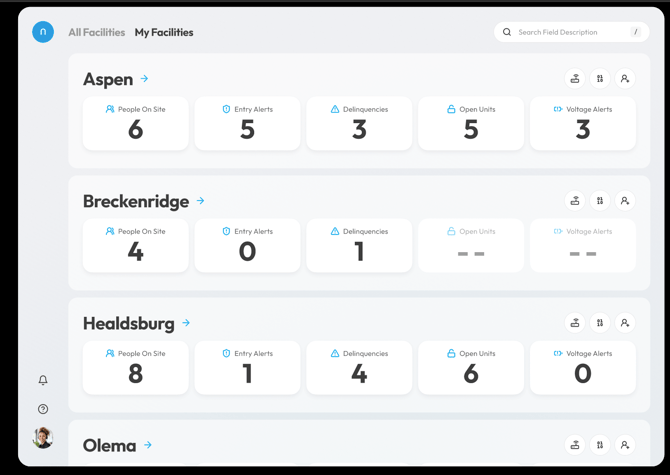
This page is divided into two sections: All Facilities and My Facilities, allowing users to switch between a global and personalized view.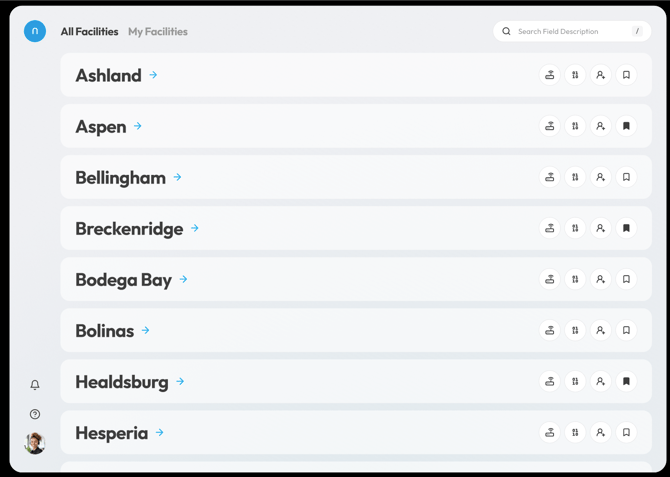
-
All Facilities: Displays a list of all facilities you have access to.
-
My Facilities: Shows your bookmarked or saved facilities.
-
To save a facility to your My Facilities page, click the bookmark icon on the All Facilities page.

-
Facilities in both views are listed in alphabetical order.
2. Quick Navigation Panel
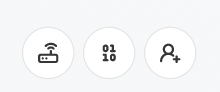
Access important sections such as Remote Open, Daily Access Code, and Adding Non-Tenant Users from the right-hand menu.
Remote Open
-
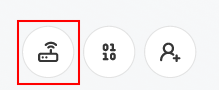
Click the Remote Open icon to control your facility's gates and access points.
-
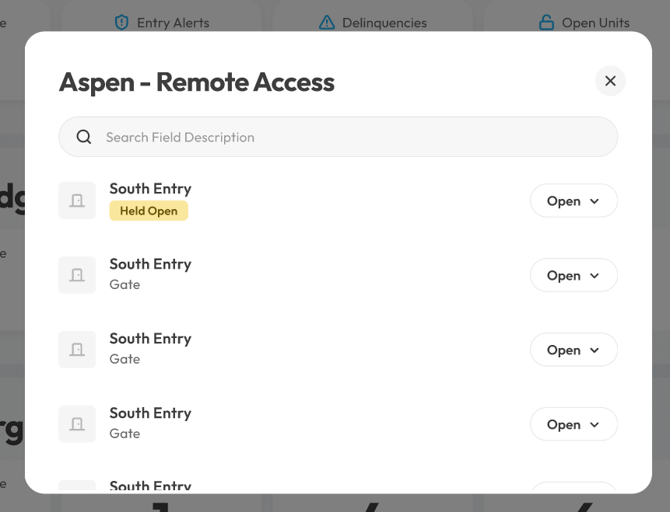
A pop-up window will appear, listing all Entries at your facility in alphabetical order. You can also use the search function to locate a specific entry point.
-
To open an entry point, click the Open button on the right-hand side.
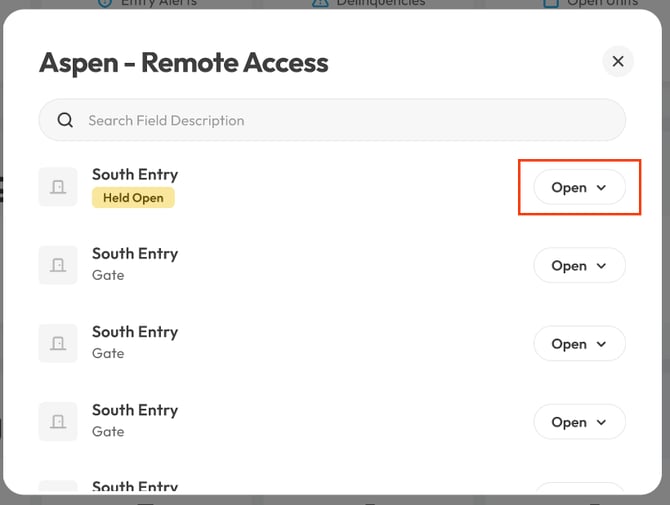
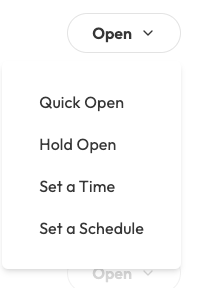
Once clicked, the dropdown will open up four remote open options.
-
If the Open button is greyed out, the unit is offline and unreachable.
-
Some entry points will only show the Open button without a dropdown due to device-specific requirements.
-
Remote Open Options
-
Quick Open: Opens the entry point for a short time and then closes automatically.
-
Hold Open: Keeps the entry point open indefinitely until manually closed.
-
Set a Time: Opens the entry point for a specified duration.
-
Set a Schedule: Allows you to schedule opening and closing times, including a repeating schedule option.
Daily Access Code
-
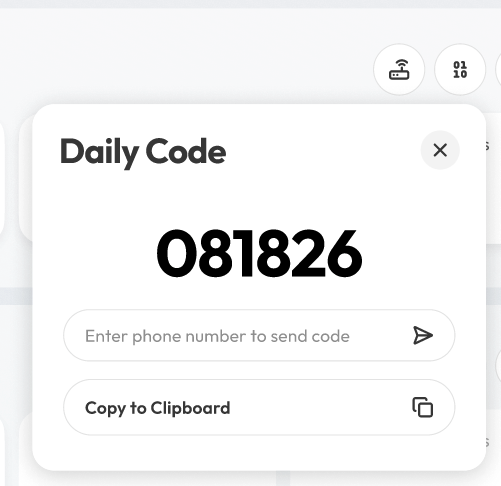
Click the Daily Access Code icon to generate a temporary access code.
-
The code is valid for 24 hours, starting at midnight.
-
This feature is available for facilities with Nokē Screens/keypads and is useful for auction winners, vendors, or inspectors.
-
Facility managers provide the code to visitors.
-
Once expired, access is revoked automatically, eliminating the need for manual removal.
-
Enter a phone number in the top bar and click the right arrow button to send the daily code via text message.
-
Click Copy to Clipboard to easily share the code via email or messaging platforms.
Add User
-
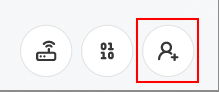
Click the Add User icon to create accounts for non-tenant users, such as employees, vendors, and maintenance workers.
-
These accounts are not managed through the Property Management System (PMS) and must be created manually in the Nokē Smart Entry (NSE) Web Portal.
-
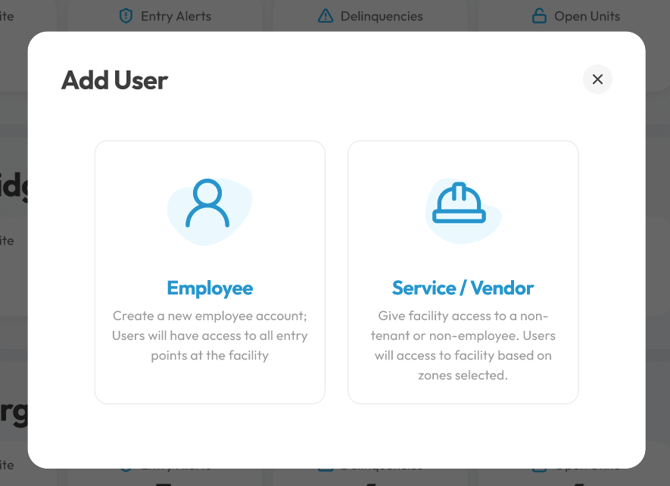
Select the user type:
-
Employee: Grants access to all entry points at the facility.
-
Service/Vendor: Provides access based on selected zones.
-
Search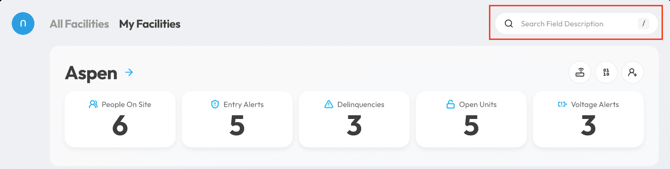
-
Use the search function to quickly find a facility or tenant.
-
This function searches Users and Units across all your facilities.
-
Clicking a search result navigates you to the corresponding User or Unit page.
My Facilities
The My Facilities section displays the facilities you’ve bookmarked as favorites.
Here, you’ll find quick-access information on:
For more details on any of these widgets, click the links above to view their corresponding articles.
Troubleshooting & Support
If you encounter issues loading the dashboard, try the following:
-
Refresh the page.
-
Clear your browser cache and try again.