![noke_vertical (1).png]](https://www.janusintl.com/hs-fs/hubfs/noke_vertical%20(1).png?height=40&name=noke_vertical%20(1).png)
In our latest update to the Smart Entry system, we've introduced two new sections to the Overview page to help you better manage your facility in real-time: Facility Monitoring and Device Management.
These new areas appear below the top dashboard widgets (People on Site, Entry Alerts, Delinquencies, etc.), which remain unchanged from the previous version.
This article explains how to navigate these new features and how they can enhance your monitoring and operational workflows.
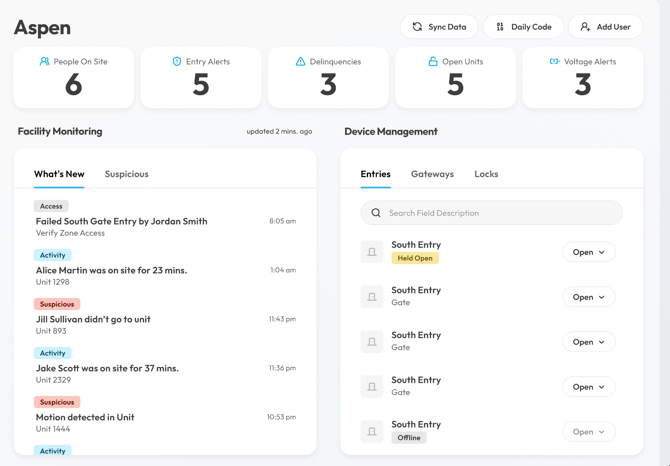
Facility Monitoring
The Facility Monitoring section provides real-time insight into activity across your site. It includes two tabs:
1. What's New
Screenshots reflect a beta version; final design and features may differ slightly.
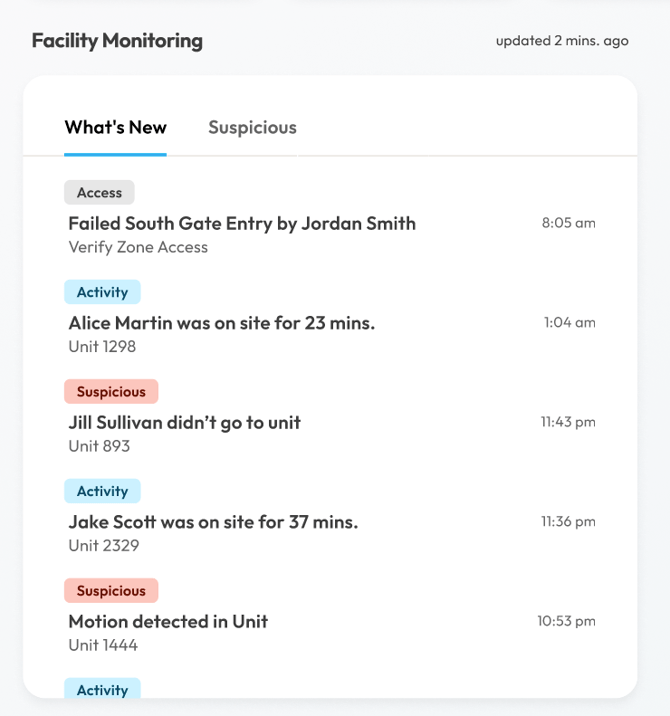
This tab shows a chronological feed of the most recent events at your facility, such as:
-
Access Events (e.g., failed gate entry attempts)
-
Activity Logs (e.g., time spent on-site)
-
Suspicious Alerts (e.g., motion detected without unit access)
Each event includes:
-
A category tag (Access, Suspicious, Failed, Locked, Other)
-
A short event description
-
A timestamp
-
Unit details (when applicable)
Based on user feedback, this section now displays activity in a more user-friendly, conversational format.
Examples:
-
Failed South Gate Entry by Jordan Smith – 8:05 am
-
Alice Martin was on site for 23 mins – Unit 1298 – 1:04 am
This section updates automatically about every 10 minutes and displays activity from the last 24 hours. Scroll to see older entries or switch to the Activity tab for a more comprehensive, filterable history.
2. Suspicious
Screenshots reflect a beta version; final design and features may differ slightly.
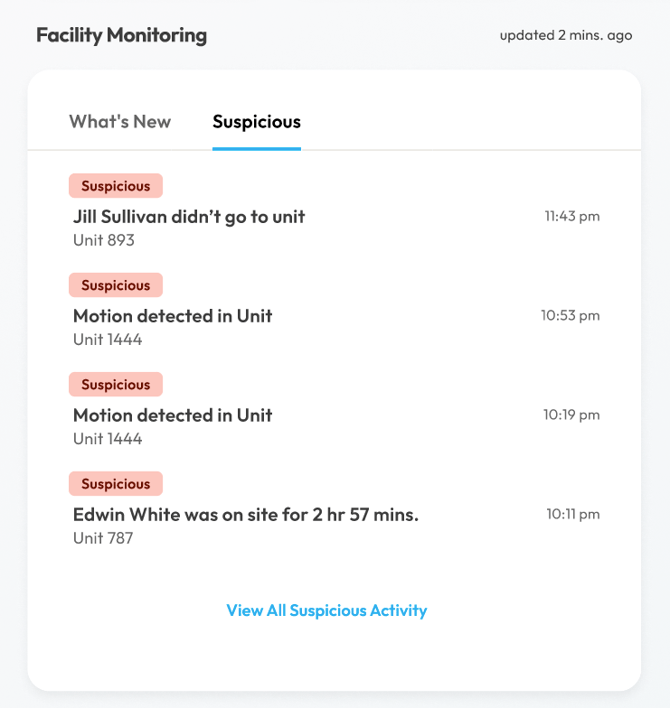
This tab replaces the previous Reports tab and focuses on potentially suspicious behavior. Events here may require follow-up or investigation.
Suspicious activity includes:
-
Alarm triggered
-
Failed to unlock due to being Out of Zone
-
Failed to unlock due to being Out of Schedule
-
Lock forced open
-
Motion started/stopped in the unit
-
Unit’s rental state manually changed
-
Manual unlock (forced)
-
Entered through a gate but did not visit unit within 15 minutes
Use this tab to quickly identify and prioritize events that may indicate misuse or security issues.
Device Management
The Device Management section lets you view, monitor, and control facility hardware. It includes three tabs:
1. Entries (default tab)
Screenshots reflect a beta version; final design and features may differ slightly.
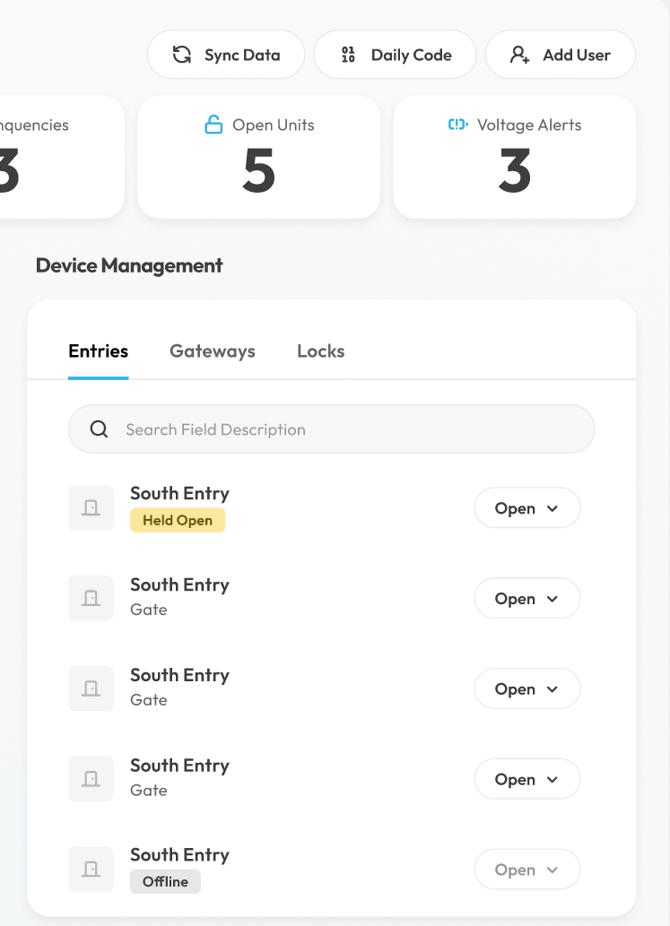
Shows all entry points (gates, doors, etc.). For each, you’ll see:
-
Entry name (e.g., South Entry)
-
Status: Open, Held Open (gold), or Offline (gray)
-
Dropdown menu for remote open or hold-open actions
-
Search bar to filter by name or description
2. Gateways
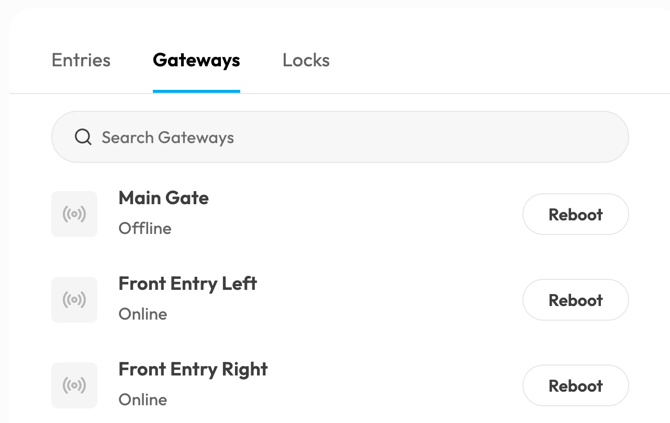
Monitor and troubleshoot gateway devices. Options include:
-
Reboot – First step for bringing offline devices back online
3. Locks
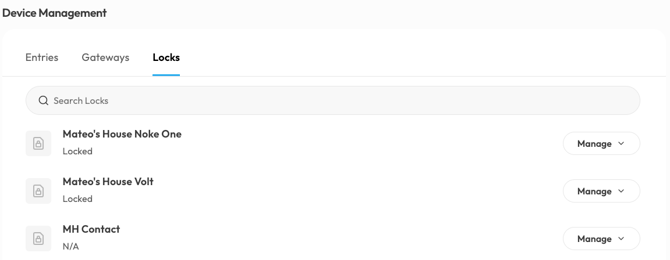
Displays the status of all smart locks on your site.
Occupied units – Option include Reboot Lock and Emergency Unlock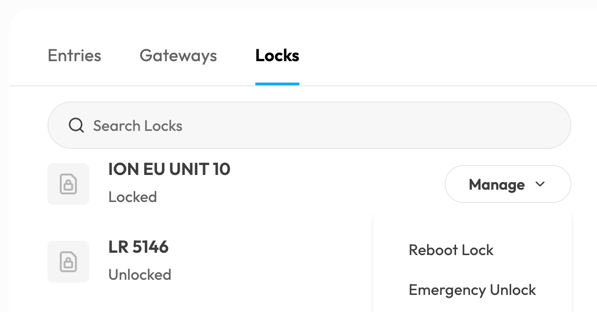
Emergency Unlock Process:
Used for emergencies (fire, flood, medical) where immediate access is required.
-
-
Click Emergency Unlock from the dropdown.
-
Select a reason: Flood, Fire, Tenant locked phone in unit, or Other (enter details).
-
The reason is included in a text notification sent to the tenant.
-
Unoccupied units – Options include Reboot Lock and Unlock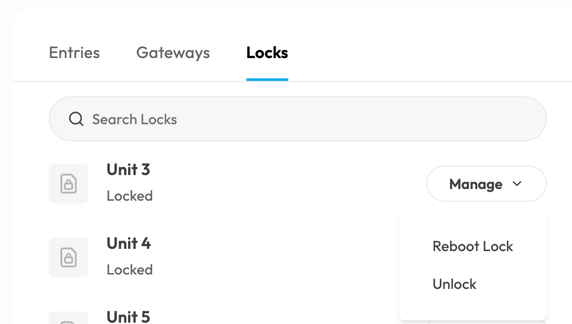
These updates give you more visibility and control at a glance. By consolidating core activity and hardware information,
Facility Monitoring and Device Management help you respond faster and manage your site more efficiently, while the move to the Overview page will simplify and modernize your overall experience.